There’s no doubt the most powerful travel tool on a trip is your phone. I wish we had these when I first started traveling since it would’ve taken a lot of the fear away. My buddy and tech expert Rich DeMuro recently did a segment on KTLA (embedded below) that’s very helpful for anyone traveling abroad. I do most of these things when I travel international so it’s second nature to me. But Rich is very good at explaining it in layman terms. Before you head abroad try these simple phone tips to make your trip smoother and more affordable.

1. Check your carrier
See if roaming is included in your plan. If not, you can usually buy daily travel passes for around $12 so you can use your phone just like you do at home. I have T-Mobile and my plan includes “free international unlimited texting and basic data in over 215 countries, plus unlimited talk/text/data in Mexico & Canada (with high-speed data caps).”
 2. Try affordable data plans
Rich suggests apps like Airalo and Simly because they offer cheap international data options. Just make sure your phone is unlocked. If you have a newish phone with an eSIM, I use a company called Ubigi to get inexpensive data. It’s simple to set up and will allow me to use GPS, order an Uber or make FaceTime calls when my T-Mobile data slows down. Here’s how to set it up.
3. Download offline maps
Use Google Maps or Apple Maps to save areas before you travel. Mark your hotel and must-see spots so you can get around without using data. Since I have free data or cheap data using Ubigi, my favorite walking map app to use is Walk Wellbeyond since it doesn’t give directions. It just has an arrow pointing in the direction I need to go and shows the distance and estimated time for arrival.
4. Install a translation app
Google Translate or Apple Translate work great. Download the language pack ahead of time so it works offline too.
5. Stay connected with WhatsApp
It works over Wi-Fi or data and is great for messaging locals or staying in touch with home. Almost everyone I meet, including companies, use WhataApp. It’s the most inexpensive (free) way to get in touch with them. I used it last week multiple times while in Tahiti to let our tour guides/drivers know when we were ready to leave.
6. Set up tap-to-pay
Add a credit card that doesn’t charge foreign transaction fees and make it your default for quick payments. I rarely keep cash on me and sometimes I don’t even carry a physical credit card since I just use my Apple Pay.
7. Learn the basics of the language
Apps like Duolingo are great for vocabulary and Speak lets you practice real conversations.
8. Free up storage
On Android use Google Photos or the Files app. On iPhone go to Settings > General > iPhone Storage and follow the suggestions. I carry small portable external hard drive to download/backup all my photos and videos (I take a lot).
9. Back up your documents
Take pictures of your passport and ID and carry a physical copy too.
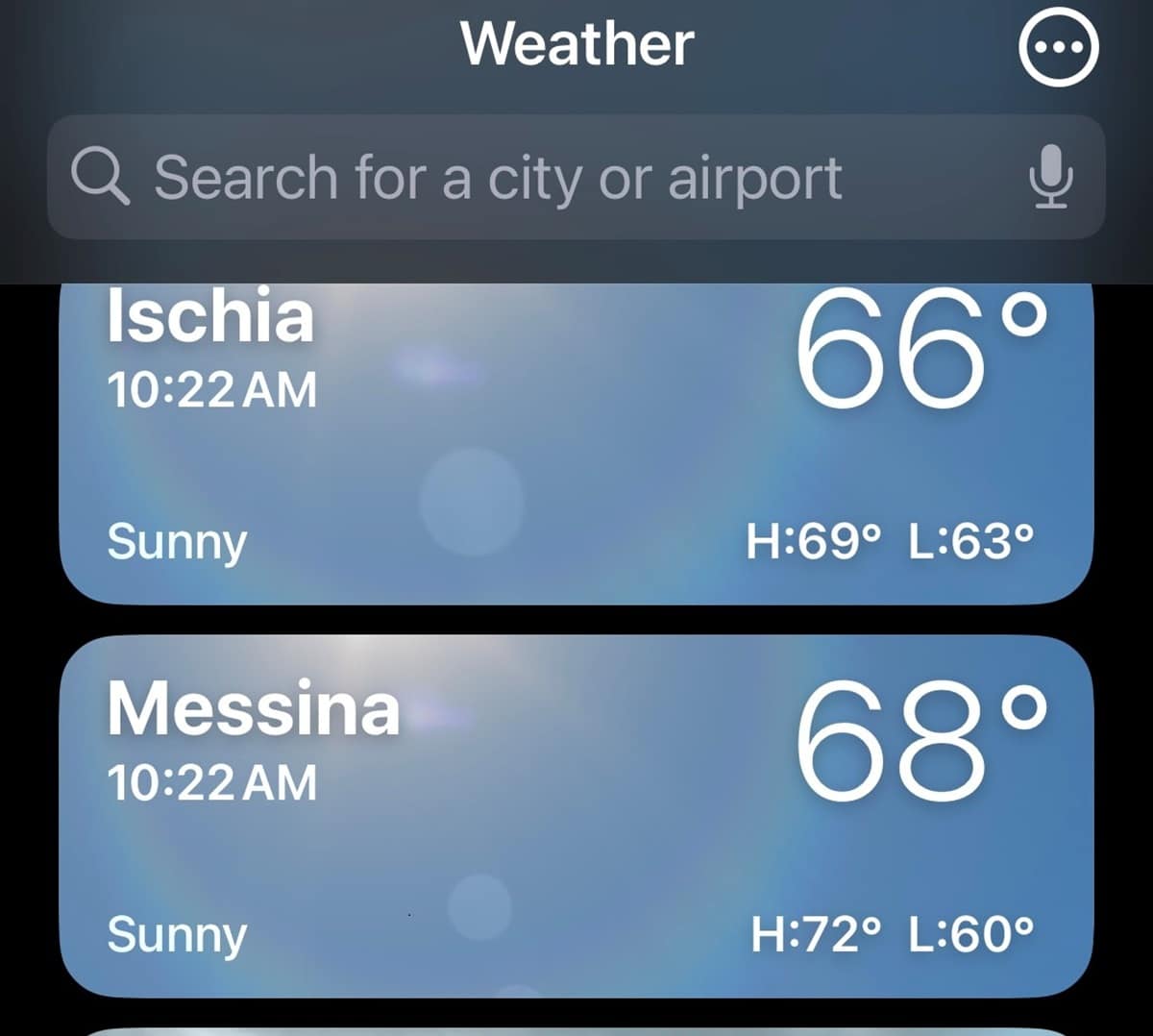
10. Add a world clock
It helps you stay in sync with time zones back home. I use the Weather app since I load all of my destinations because it not only shows the temperatures but the current time. I keep L.A. second from the top so I know the time at home, where I am (that’s at the top) and where I’m going. Above is a example from last summer’s epic trip.
11. Use a currency converter
Spotlight Search on iPhone or a simple calculator can give you quick conversions on the go. I also make sure I have text alerts set up for all of my credit cards so I know exactly when they’re used and how much I was charged.
12. Adjust cloud settings
Turn off automatic uploads for photos and streaming. Set them to Wi-Fi only to save data.
13. Download entertainment in advance
Movies shows podcasts and playlists will keep you entertained during flights without needing a connection. If you read my What’s it like to fly Air Tahiti Nui from LAX to Papeete then you know one of my tips is to always download your airlines app and entertainment app in advance. That’s because once you get on a plane (especially a 787) the reception is so bad you won’t be able to.
14. Change your Google region
Set it to United States so your search results remain familiar no matter where you are.
15. Be smart about Wi-Fi
Public Wi-Fi is fine for casual browsing but use a cellular connection or VPN for anything sensitive like banking.
For a full list of tech travel tips visit RichOnTech.tv